Projects Unified Service Management
Organize all your Shulker services — VPS, Minecraft Servers, DevSpace containers, Databases, and more — into a single visual workspace. Control everything from one page with real-time metrics and intuitive drag-and-drop management.
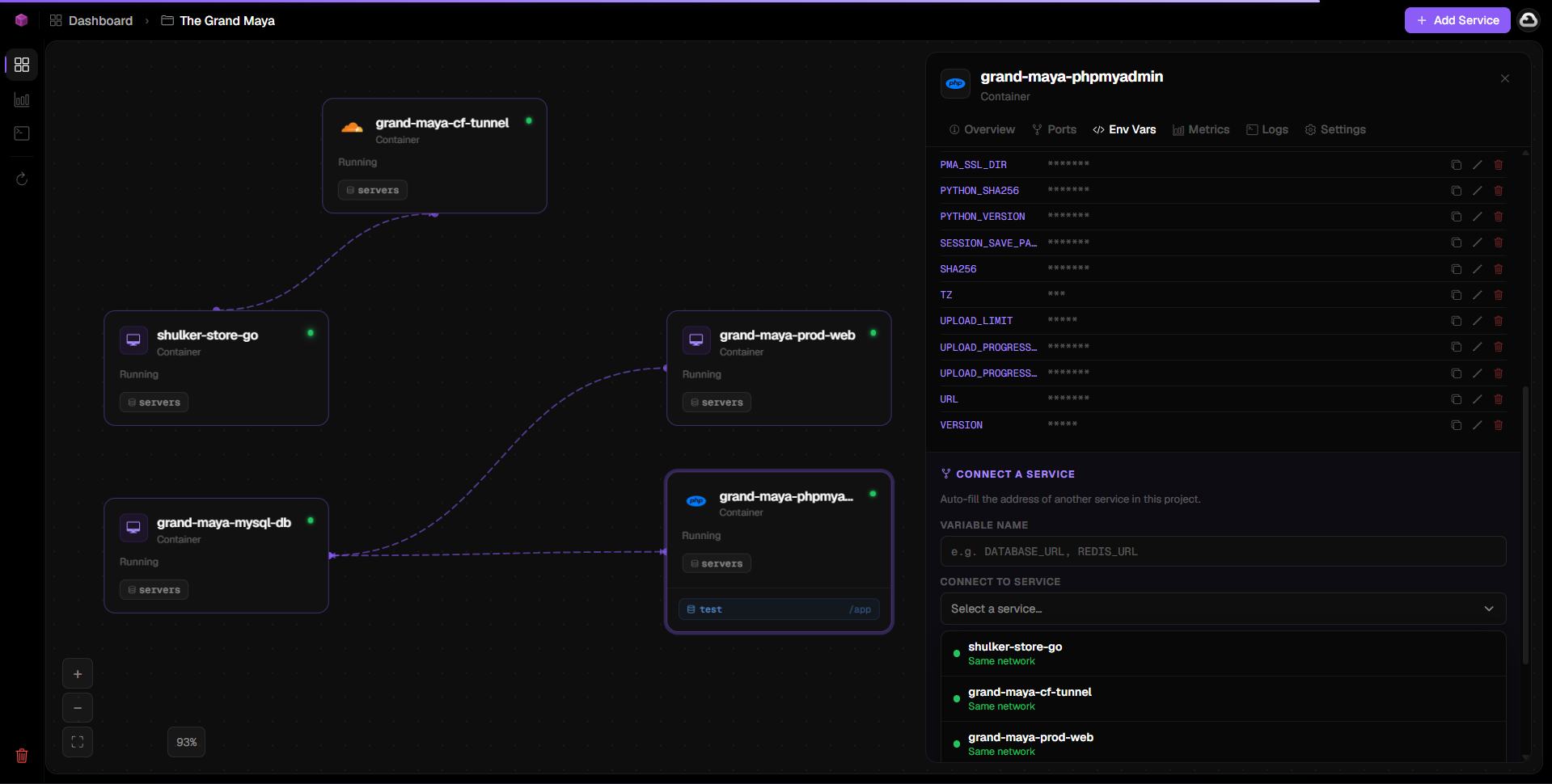
What are Projects?
📁 Projects is your control center — Stop jumping between multiple dashboards. Projects brings everything together into a single, organized view where you can visually manage and monitor all your Shulker infrastructure.
Getting Started
💡 Pro Tip — You can add the same service to multiple projects. This is useful for organizing services across different teams or use cases (e.g., "Production" project, "Staging" project, "Development" project).
Service Control Panel
When you click on a service card in your project, an expanded panel opens with full control capabilities.
📊 Real-Time Metrics — Metrics automatically start streaming when you open a service's detail panel. You'll see live CPU usage, memory consumption, disk I/O, and network traffic. Historical graphs are also available for the past 24 hours.
Networking: How Services Communicate
Understanding how services connect is critical for building integrated applications. Shulker provides two primary methods for service-to-service communication: Internal Network Pools and Public IPs.
🌐 Network Pools (Internal Communication)
A Network Pool is a private virtual network that allows multiple Shulker services to communicate with each other internally, without traffic going over the public internet.
┌─────────────────────────────────────────────────────────────┐
│                    Network Pool: "prod-net"                  │
│                     Internal CIDR: 172.17.0.0/16             │
├─────────────────────────────────────────────────────────────┤
│  ┌──────────────┐    ┌──────────────┐    ┌──────────────┐   │
│  │  DevSpace A  │    │   Database   │    │  DevSpace B  │   │
│  │ 172.17.0.2:80│◄──►│ 172.17.0.3:5432│◄──►│ 172.17.0.4:3000│   │
│  │   (Web App)  │    │  (PostgreSQL) │    │   (API)      │   │
│  └──────────────┘    └──────────────┘    └──────────────┘   │
│                                                             │
│  All traffic stays within the pool — no public exposure     │
└─────────────────────────────────────────────────────────────┘
# Assuming both services are in Network Pool "prod-net"
# Database container (PostgreSQL) has Internal IP: 172.17.0.3, forwarded port: 5432

# In the Web App container's environment variables, add:
DATABASE_HOST=172.17.0.3:5432
DATABASE_NAME=mydb
DATABASE_USER=admin
DATABASE_PASSWORD=secret
✅ Internal Communication Benefits — Zero latency overhead (direct container-to-container), no public exposure (more secure), no bandwidth costs, and faster data transfer.
🌍 Public IP Communication
When services are in different Network Pools, or when you need to access a service from outside Shulker, you must use the service's public forwarded IP address.
┌──────────────┐         ┌─────────────────────────────────────────┐
│  DevSpace A  │         │              Public Internet             │
│  (Pool: prod)│         │                                         │
│ 172.17.0.2   │────────▶│  Traffic goes through public internet   │
└──────────────┘         │                                         │
                         └─────────────────────────────────────────┘
                                              │
                                              ▼
                         ┌─────────────────────────────────────────┐
                         │              DevSpace B                 │
                         │            (Pool: staging)              │
                         │    Public IP: in1-north.shulker.in:1002 │
                         └─────────────────────────────────────────┘
# Services in different network pools cannot use internal IPs
# Use the public forwarded IP of the target container

# Database container's public forwarded address (from Port Manager)
# Format: {node}.shulker.in:{forwarded_port}

DATABASE_HOST=in1-north.shulker.in:1002
DATABASE_NAME=mydb
DATABASE_USER=admin
DATABASE_PASSWORD=secret
⚠️ Important — Public IP communication routes through Shulker's edge network and is protected by DDoS filtering. However, it adds minimal latency and counts toward your bandwidth usage. For production applications, keeping services in the same Network Pool is strongly recommended for performance and security.
Connecting Services
Shulker Projects provides two methods to connect services together: the built-in "Connect Service" feature and manual environment variable configuration.
Method 1: Connect Service Feature (Recommended)
Method 2: Manual Environment Variable Configuration
DATABASE_HOST).# Example 1: Same Network Pool (Internal Communication) # Service A (Web App) connecting to Service B (PostgreSQL Database) # Both are in Network Pool "prod-net" # Service B has Internal IP: 172.17.0.3, forwarded port: 5432 DATABASE_HOST=172.17.0.3:5432 DATABASE_NAME=myapp DATABASE_USER=postgres DATABASE_PASSWORD=securepassword # Example 2: Different Network Pools (Public Communication) # Service A (Web App) in "prod-net" connecting to Service B (API) in "staging-net" # Service B's public forwarded address (from Port Manager) API_BASE_URL=https://in1-north.shulker.in:1002 # Example 3: Connecting to a Managed Database # Managed databases have a dedicated hostname DATABASE_URL=postgresql://user:[email protected]:5432/mydb
🔌 What happens when you click "Connect a Service"? Shulker automatically checks the Network Pool of both services, retrieves the correct connection string (Internal IP if same pool, Public IP if different), creates an environment variable with the appropriate name, and injects it into the source service — all with one click.
Port Forwarding for Service Communication
Before services can communicate (whether internally or externally), you must forward the required ports on the target service.
🔐 Port Security — You can apply IP whitelisting to forwarded ports, even for internal Network Pool communication. This adds an extra layer of security by restricting which services can connect to the port.
Understanding Network Pools
Network Pools are the foundation of service isolation and communication in Shulker.
# Via Shulker Dashboard:
# 1. Navigate to your service's main panel
# 2. Look for the "Info" or "Network" section
# 3. Find "Network Pool" field (e.g., "prod-net", "staging-net", "default")
# 4. Find "Internal Gateway IP" (e.g., "172.17.0.2")

# Via Shulker API:
curl "https://shulker.in/api/v2/?req=service_info&service_id=123&api_key=sk_..."
⚠️ Network Pool Best Practices — Keep services that need to communicate frequently in the same Network Pool for optimal performance. Use different pools for isolation between environments (dev/staging/prod). Changing a service's Network Pool will change its Internal IP address — update any environment variables that reference the old IP.
Real-Time Metrics
When you open a service's detail panel in a project, metrics automatically start streaming in real-time.
📈 Historical Data — Metrics streaming starts automatically when you view a service. You can also view historical graphs for the past 24 hours, including peak usage times and average load patterns.
Troubleshooting
❌ Services Can't Communicate
Check if they're in the same Network Pool. Verify that the target service has its port forwarded. Confirm the environment variable uses the correct address (Internal IP for same pool, Public IP for different pools). Ensure no IP whitelist is blocking the connection.
📊 Metrics Not Showing
Metrics require the service to be running. If the service is stopped, metrics won't be available. Try restarting the service. For DevSpace containers, ensure the metrics agent is enabled in settings.
🔌 Port Forwarding Not Working
Verify your application is listening on 0.0.0.0 (not localhost/127.0.0.1). Check that no firewall rules are blocking the port. Confirm the internal port number matches what your application uses.
🔄 Service Not Appearing in Project
Refresh the project page. Ensure the service is deployed and in an "active" state. Try removing and re-adding the service to the project.
Best Practices
📁 Project Organization — Create separate projects for different environments (Development, Staging, Production). Use descriptive names and add team members with appropriate permissions.
🔗 Service Connections — Always use the "Connect Service" feature when possible — it handles IP detection and environment variable naming automatically. For manual connections, document your connection strings.
🌐 Network Pool Strategy — Keep tightly coupled services (app + database) in the same Network Pool for optimal performance. Use different pools for security isolation between trust boundaries.
📊 Metrics Monitoring — Set up alerts for abnormal metrics (high CPU, memory leaks, network spikes). Projects can send notifications to Discord, Slack, or email when thresholds are exceeded.
Quick Reference
# Same Network Pool (Internal IP)
DATABASE_HOST=172.17.0.3:5432
REDIS_HOST=172.17.0.4:6379
API_INTERNAL=http://172.17.0.5:8080

# Different Network Pools (Public IP)
DATABASE_HOST=in1-north.shulker.in:1002
REDIS_HOST=in2-south.shulker.in:1003
API_PUBLIC=https://api.shulker.in:1044

# Managed Services
DATABASE_URL=postgresql://user:[email protected]:5432/mydb
MYSQL_URL=mysql://user:[email protected]:3306/mydb